Limit your data exposure
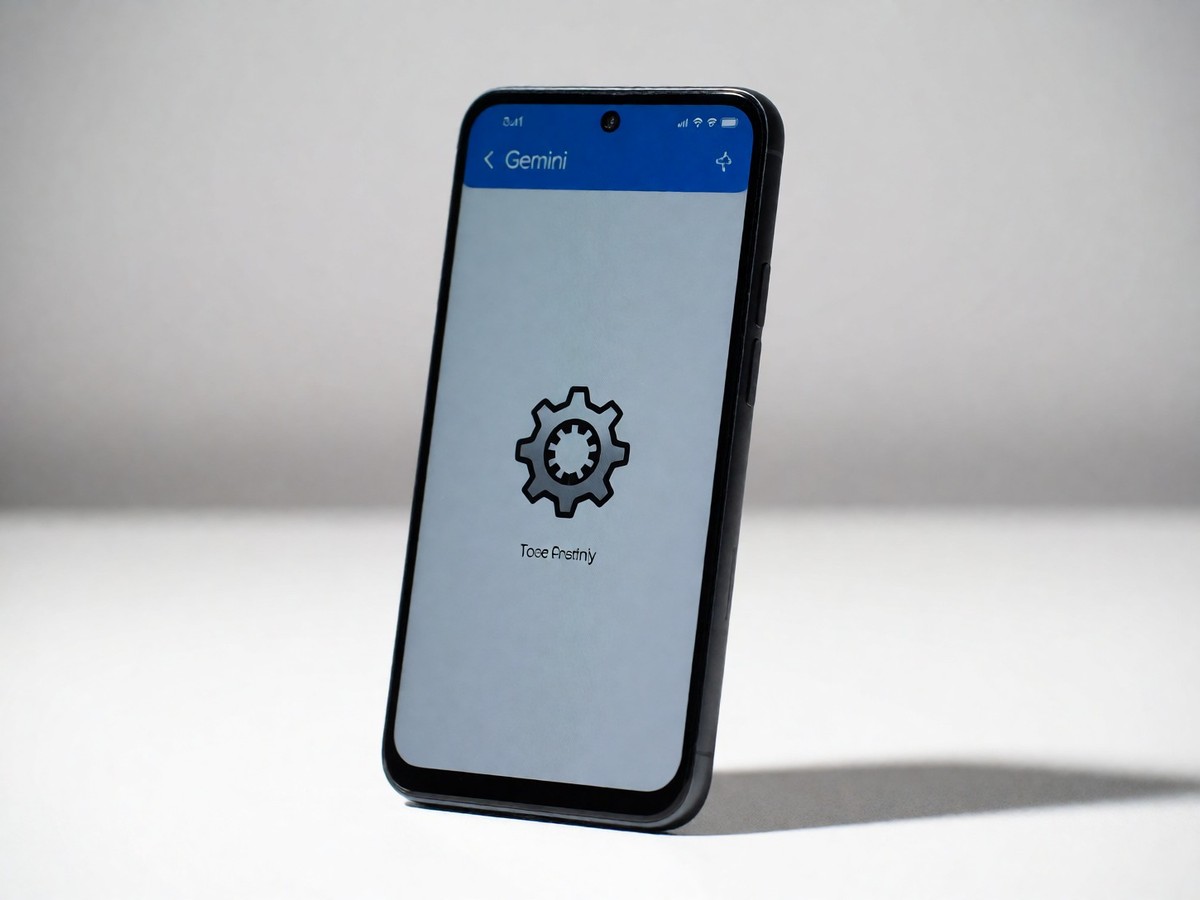
I recommend you limit how much information Google collects by adjusting specific Gemini settings. You can avoid training Google’s AI with your personal data if you uncheck "Chat content including text & attachments" and "Audio and Gemini Live videos & screenshares" in the Gemini History settings. This action prevents human reviewers from seeing your prompts or uploaded files. I also suggest you turn off Gemini chat history to reduce how long Google holds your data. If you keep history on, Google holds your conversations for three months or longer, but if you turn this feature off, Google holds your data for only about two months. You cannot pick up chats where you left off if you turn off this history. Deleting chats won’t help if you sent them via text. Your organization can retrieve your conversations if you use a work or school account. The less Google Gemini knows about you, the less likely it is that Google compromises your data security and privacy. You should check which applications access your data by clicking Customize and then Connectors in the Gemini sidebar to disconnect any unwanted apps.
Control camera and microphone access
You must manage permissions if you want to prevent Gemini from camera or microphone access. Google Gemini can see through your webcam, phone camera, or smart home cameras, though it only does this if you grant permission. Gemini uses camera access for features like Gemini Live or Google Nest doorbell devices, so you might lose some functionality if you deny these permissions. To revoke camera access on an Android device, you must open the Settings app and navigate to Apps, then Gemini or Google, then Permissions, and finally select Don’t allow for the Camera option. iPhone and iPad users can toggle Gemini or the Google app off under Settings, Privacy & Security, and Camera. For Chrome users on a PC or Mac, you can click the sliders in the address bar at gemini.google.com, select Site settings, and choose to deny camera access.
Gemini processes audio from your microphone to listen for the "Hey Google" wake word. This can trigger the AI to listen if you say the phrase outside of a specific context. To block microphone access on Android, navigate to Settings, then Apps, then Gemini or Google, then Permissions, and select Don’t allow for Microphone. On iOS, you toggle microphone access off for the Gemini or Google app under Settings, Privacy & Security, and Microphone. PC and Mac users can deny microphone access through the Site settings menu in the Chrome address bar by selecting the drop-down menu to the right of the Microphone option. The process for revoking microphone access on a computer is the same as the process for the camera: click the sliders next to the URL, select Site settings, and choose to deny access under the Microphone menu.